
MiniMax H3 Image
Generate and edit images with MiniMax H3 Image. Start with a prompt or a set of references, then shape the scene through clear instructions. Explore realistic product shots, expressive illustrations and detailed worlds with one model for generation and editing.You can try it on Nano Banana
Try it Now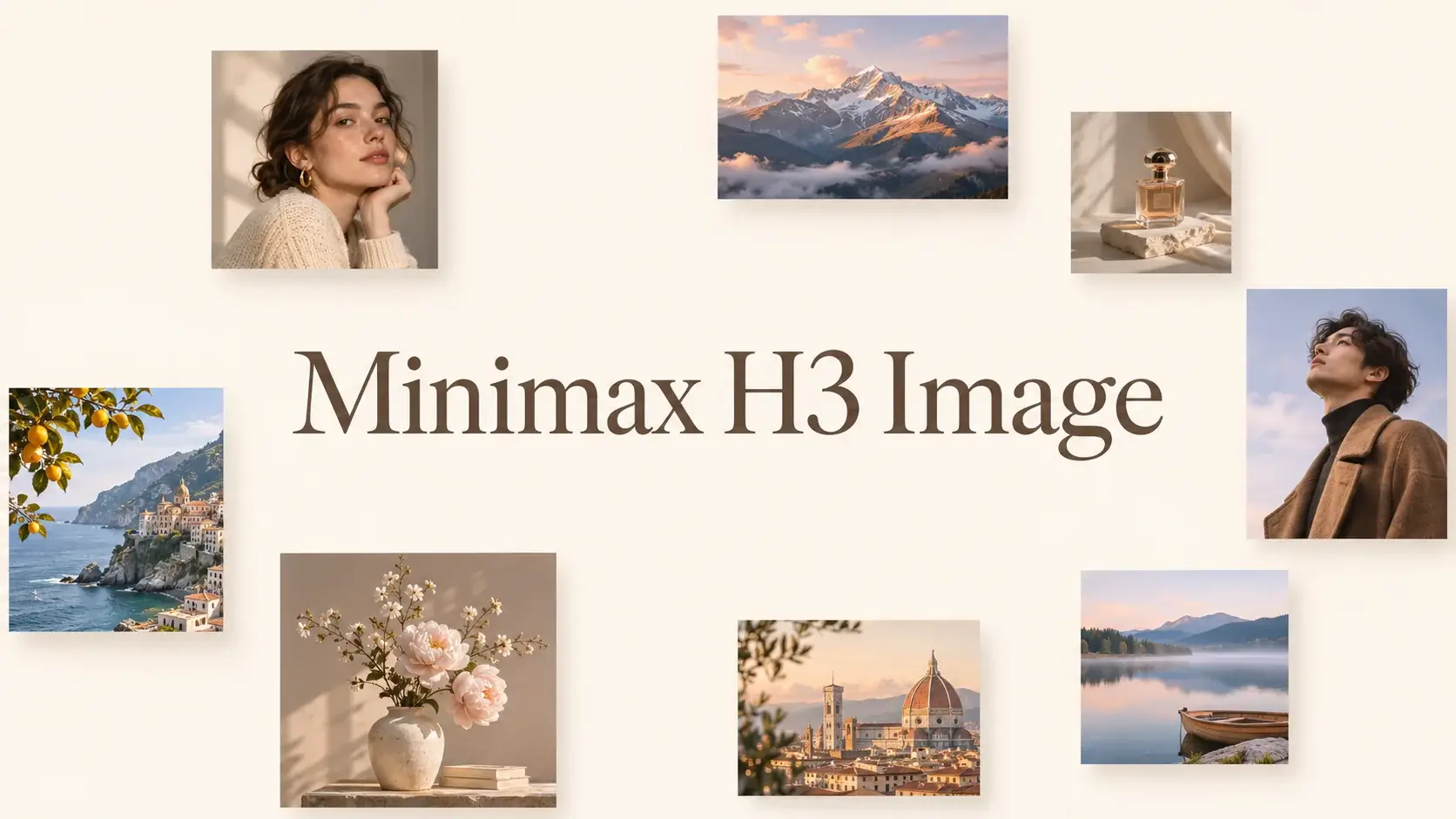
What Is MiniMax H3 Image?
MiniMax H3 Image is an open-weight image generation and editing model from MiniMax, built on the MiniMax H3 family. It creates images from text and edits existing visuals using up to 16 reference images. Bring a subject, a setting and a style together in one composition, or use a focused instruction to develop an image you already have. With native 4K generation and an understanding of objects, layouts and spatial relationships, it supports work ranging from photographic scenes to illustrated worlds and detailed design concepts.
Key Features of MiniMax H3 Image
Start with a creative brief, a reference board or an unfinished scene. Give each detail a purpose and bring the image into focus.
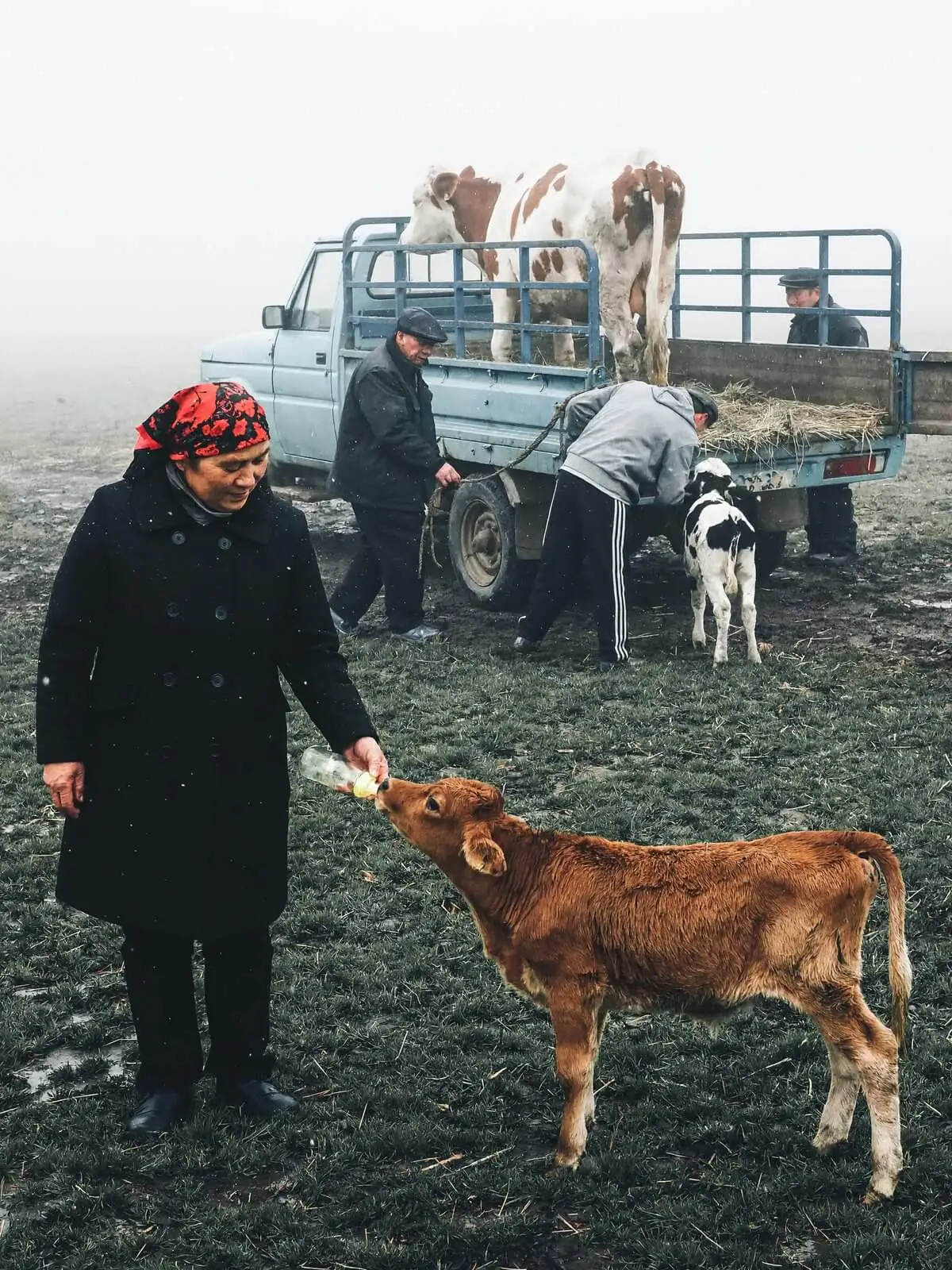
Native 4K Detail, from Fabric to Faraway Landscapes
Create high-resolution images directly, without relying on an upscaling pass. Describe the weave of a coat, the grain of weathered wood or soft light falling through mist. MiniMax H3 Image gives textures, reflections and distant scenery room to contribute to the photograph.
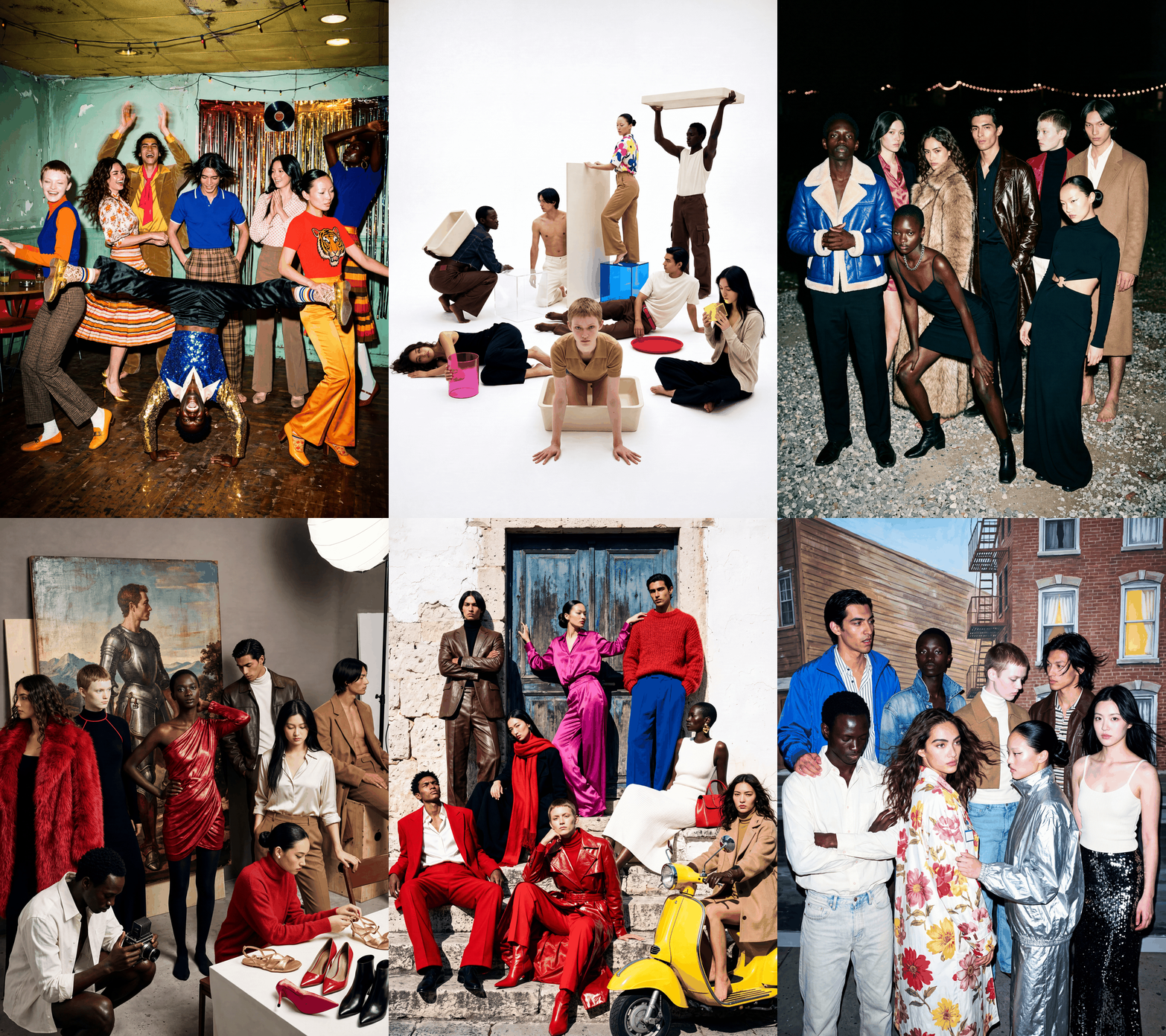
Bring Multiple References into One Scene
Combine up to 16 references and explain what each one should contribute. Take the person from one image, the clothing from another and the setting from a third. For an interior concept, bring an empty room and furniture references together, guiding placement, scale and light in a single brief.
Make Focused Edits in Everyday Language
Change an outfit's color, replace an object or give a familiar scene a different atmosphere. Describe the edit and name the details to preserve, such as the person's features, the camera angle or the background. Build on the image through focused revisions as your direction takes shape.
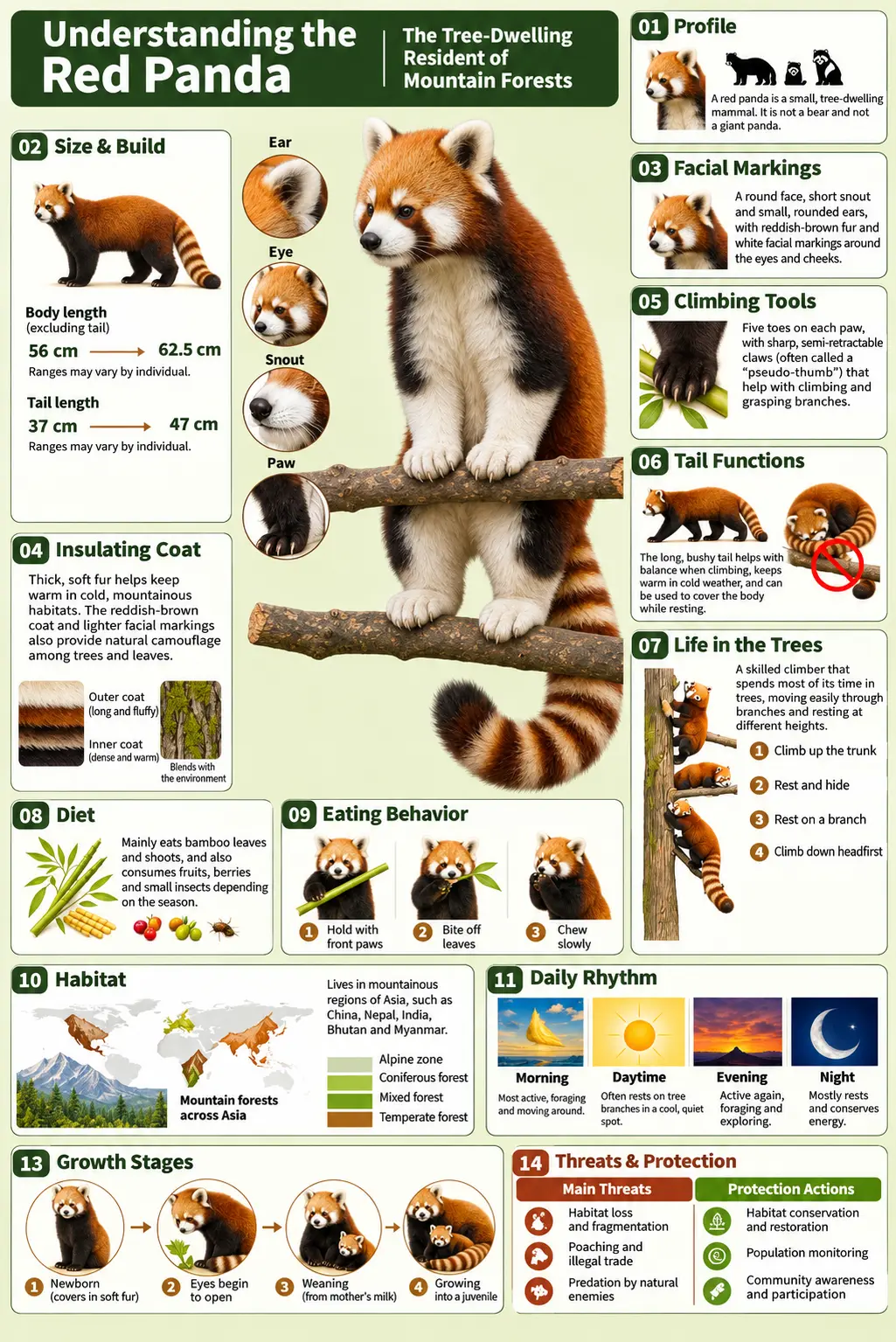
Give Complex Layouts a Clear Reading Order
Develop posters, infographics and illustrated explanations with text and imagery planned together. Specify the headline, labels, panels and relationships between elements. Give important information a clear place in the composition, then review the wording and finer details before using the design.
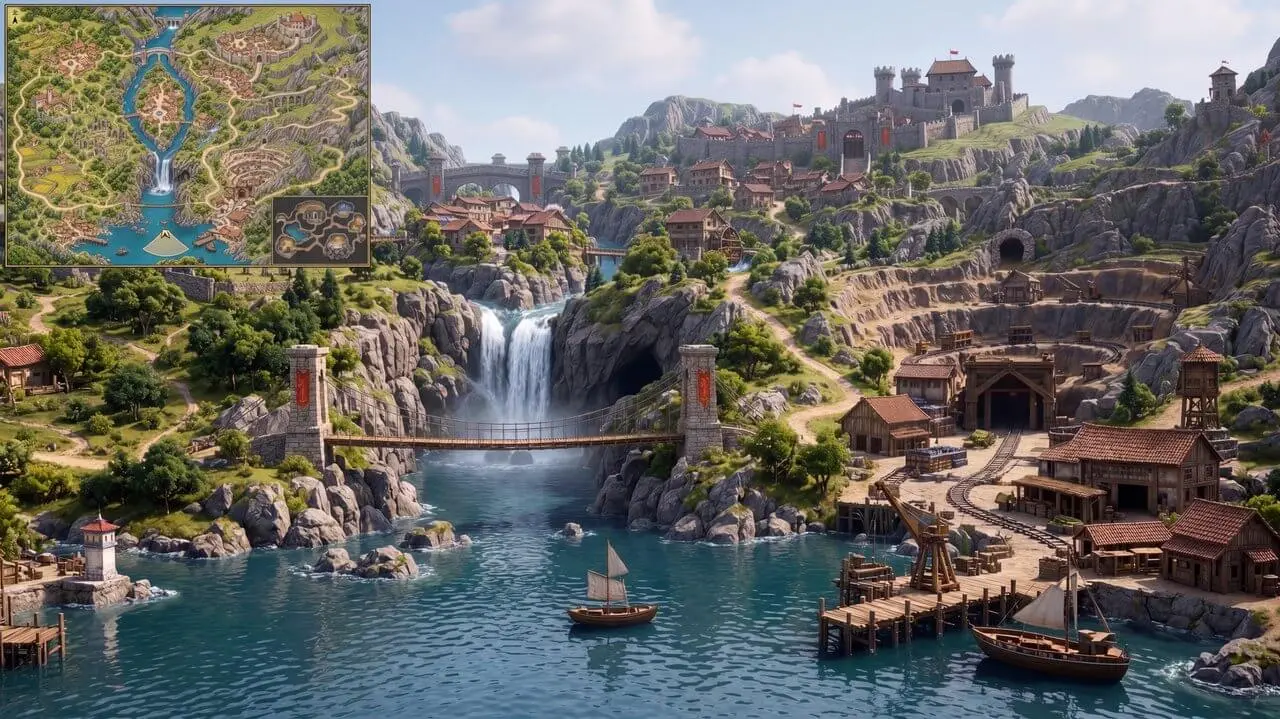
Turn a Map into a View from Inside the World
Start with a top-down map and mark the viewpoint with an arrow. Describe the camera height, terrain and atmosphere to explore the scene at eye level. Add a matching minimap to connect the new perspective with the original plan, useful for environment concepts and worldbuilding.
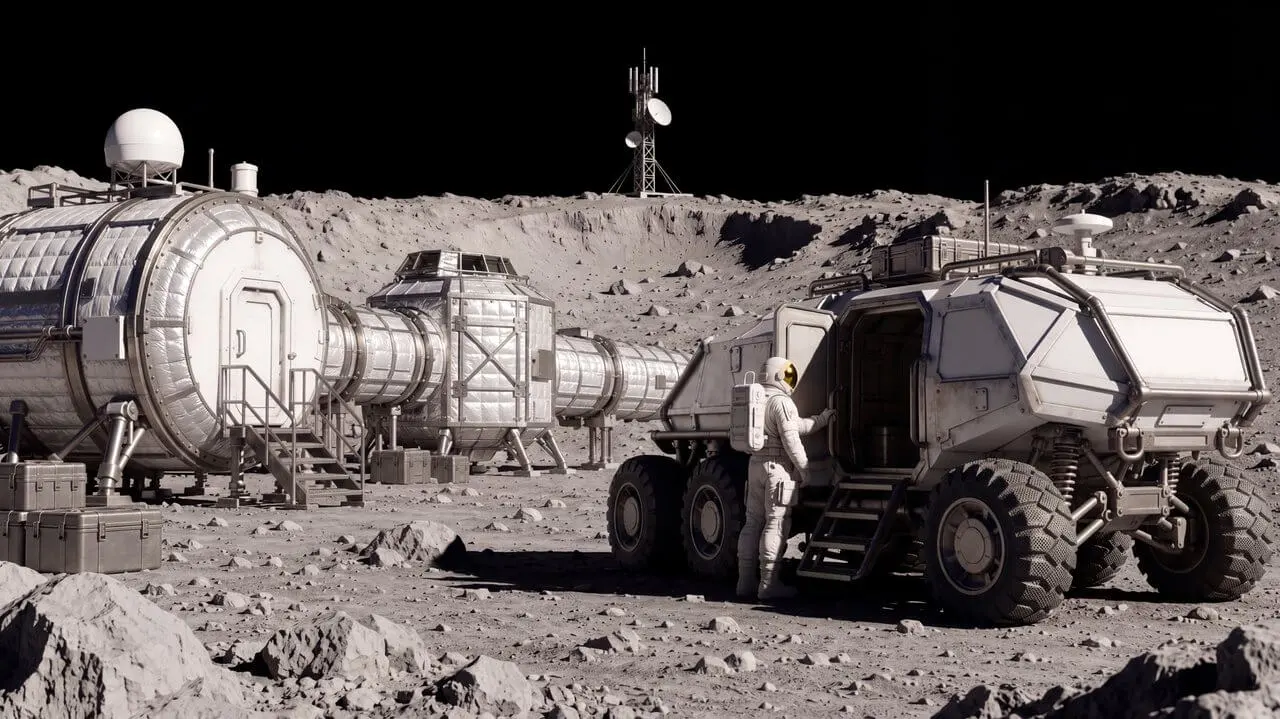
Take a Bare Render toward a Cinematic Scene
Use an untextured 3D render to guide the structure, then develop its materials, lighting and mood. Turn a simple lunar base into a scene with metallic surfaces, dusty ground and directional sunlight. Keep the original camera and proportions in the brief while exploring the final look.
How to Create with MiniMax H3 Image
Create and refine images with MiniMax H3 Image on Nano Banana. Start with a clear brief, add references when needed and develop the result in three steps.
Start with Your Idea or References
Set the Composition and Describe the Details
Review, Refine and Save
What Can You Create with MiniMax H3 Image?
Explore practical ways to bring prompts, references and editing instructions into your creative work.

Product Photography and Campaign Concepts
Place a product in a new setting and explore lighting, surfaces and props around it. Use references to guide the product's appearance while developing directions for a launch, seasonal campaign or storefront.
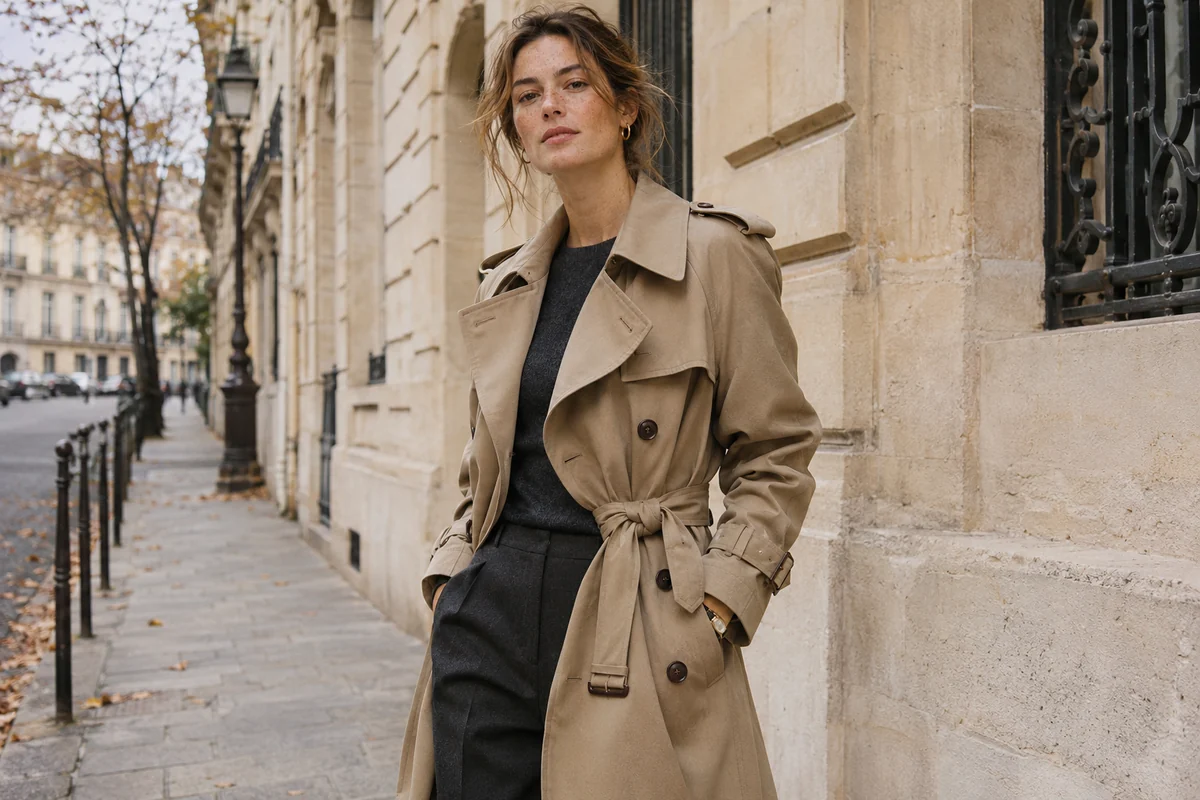
Fashion and Editorial Visuals
Bring together a subject, an outfit and a location to plan an editorial scene. Compare color combinations, styling and photographic moods with instructions that identify the details to carry across each revision.
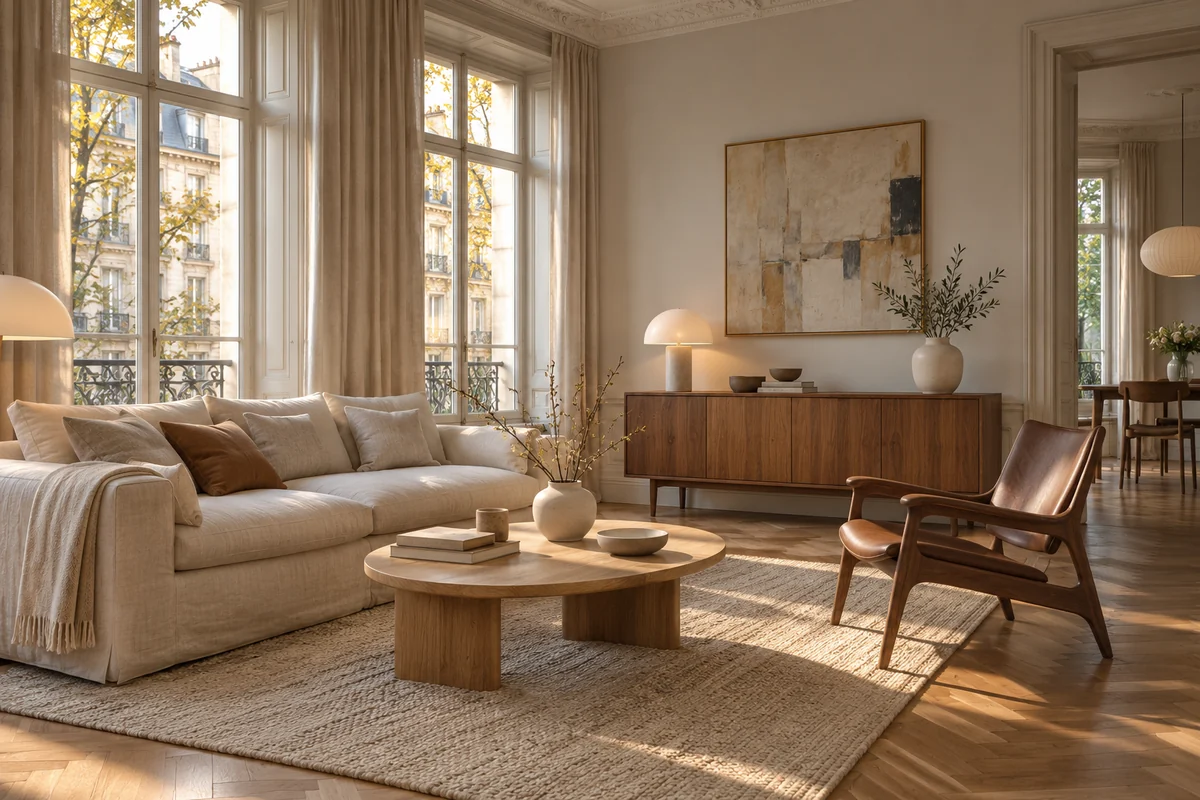
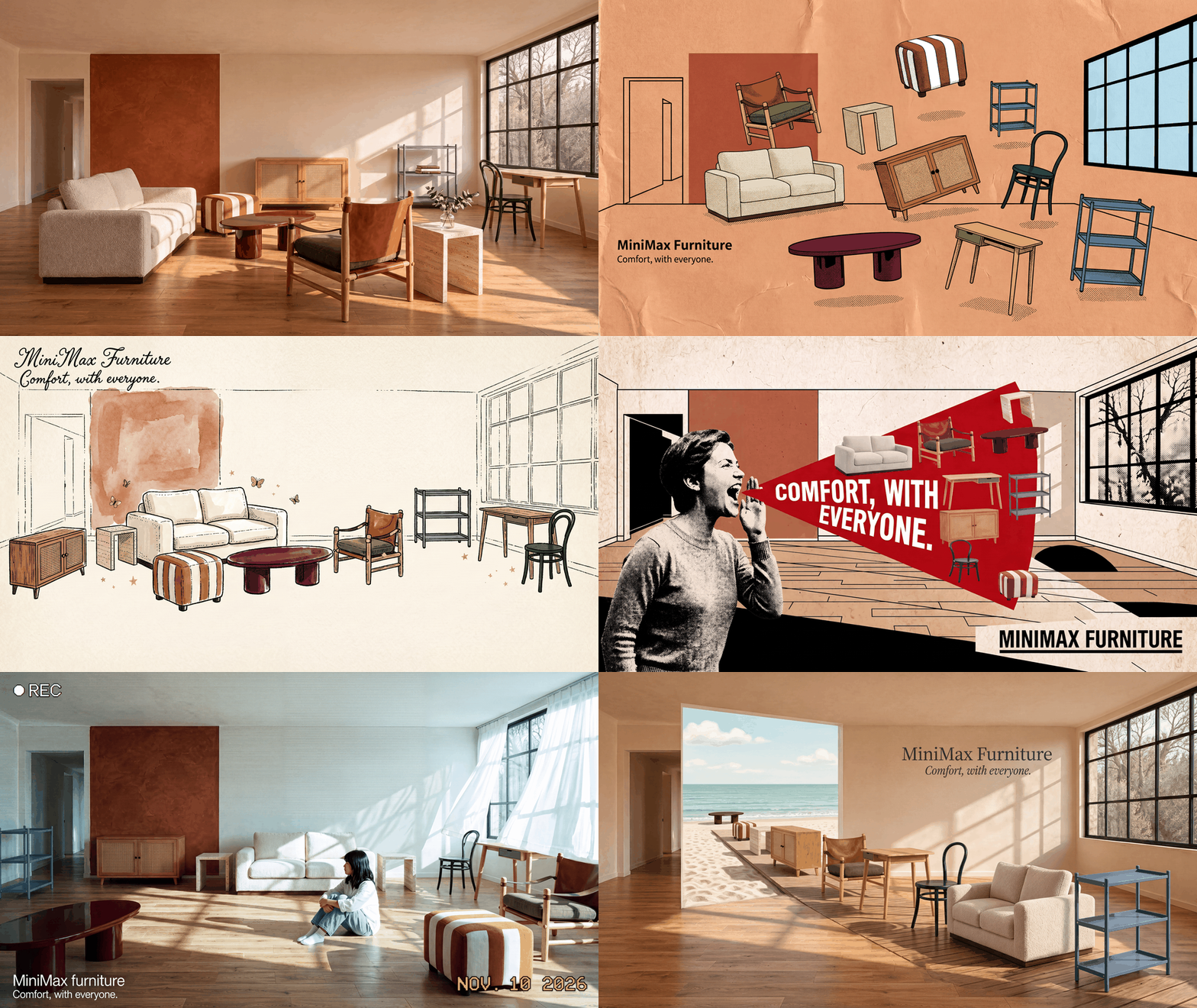
Interiors and Furnished Spaces
Combine a room reference with furniture and decor to explore a finished interior. Describe where each item belongs, how large it should appear and how the light should connect the room's materials.
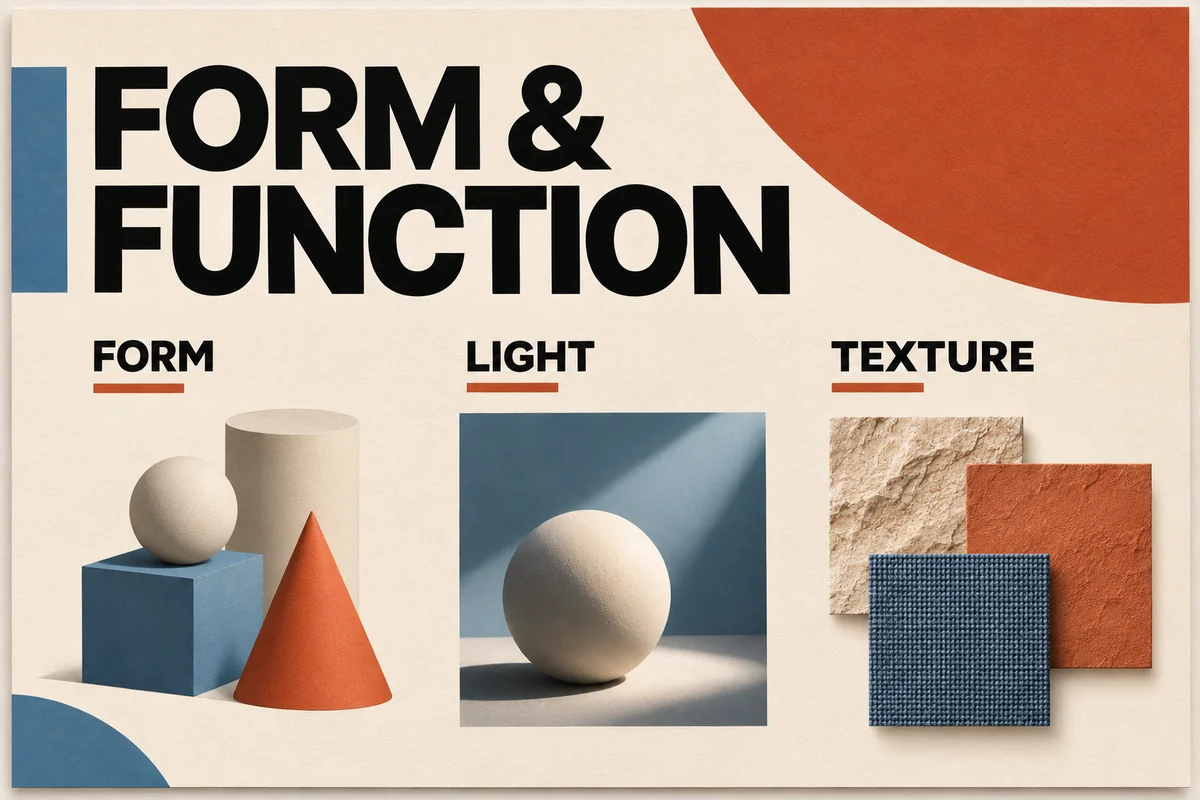
Posters and Visual Explanations
Turn a message or set of ideas into a poster, infographic or illustrated guide. Plan the reading order and give text, images and labels distinct roles within the layout.
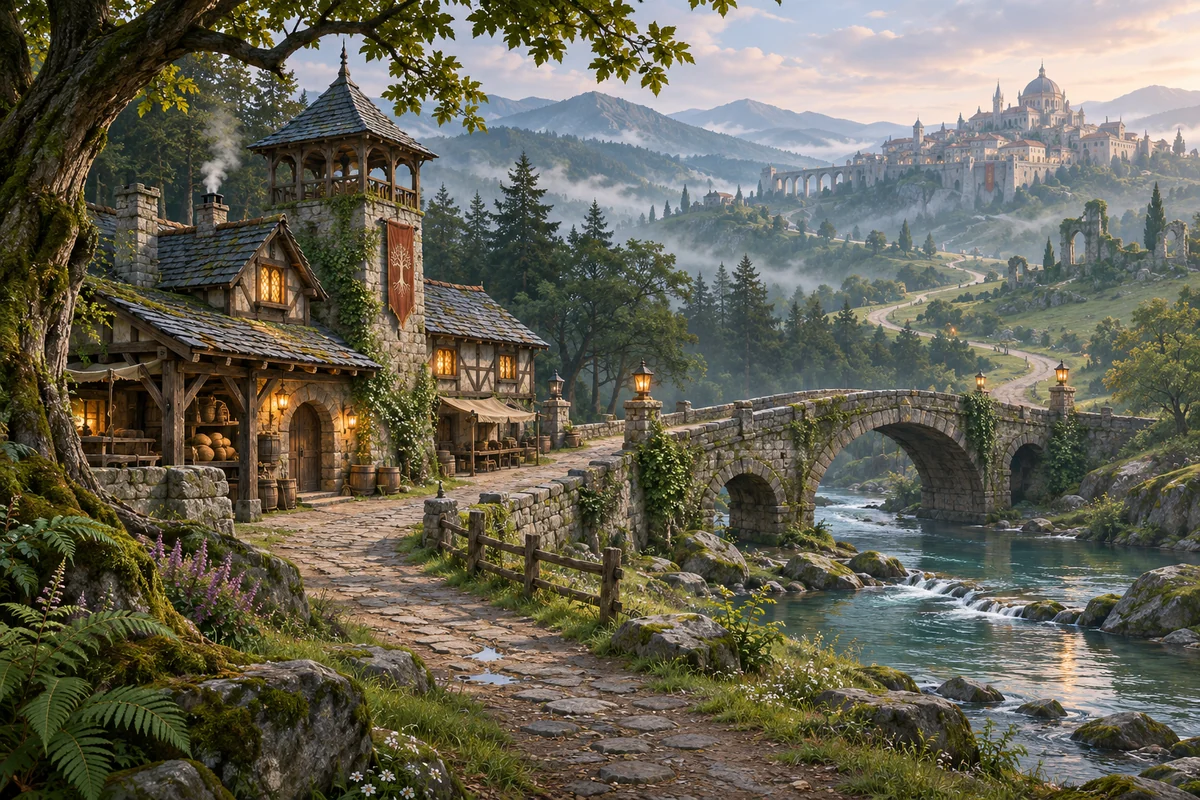
Game Environments and Worldbuilding
Develop a map, a character reference or a few lines of worldbuilding into an environment concept. Explore scale, viewpoint and atmosphere, from a quiet forest outpost to a sprawling science-fiction city.
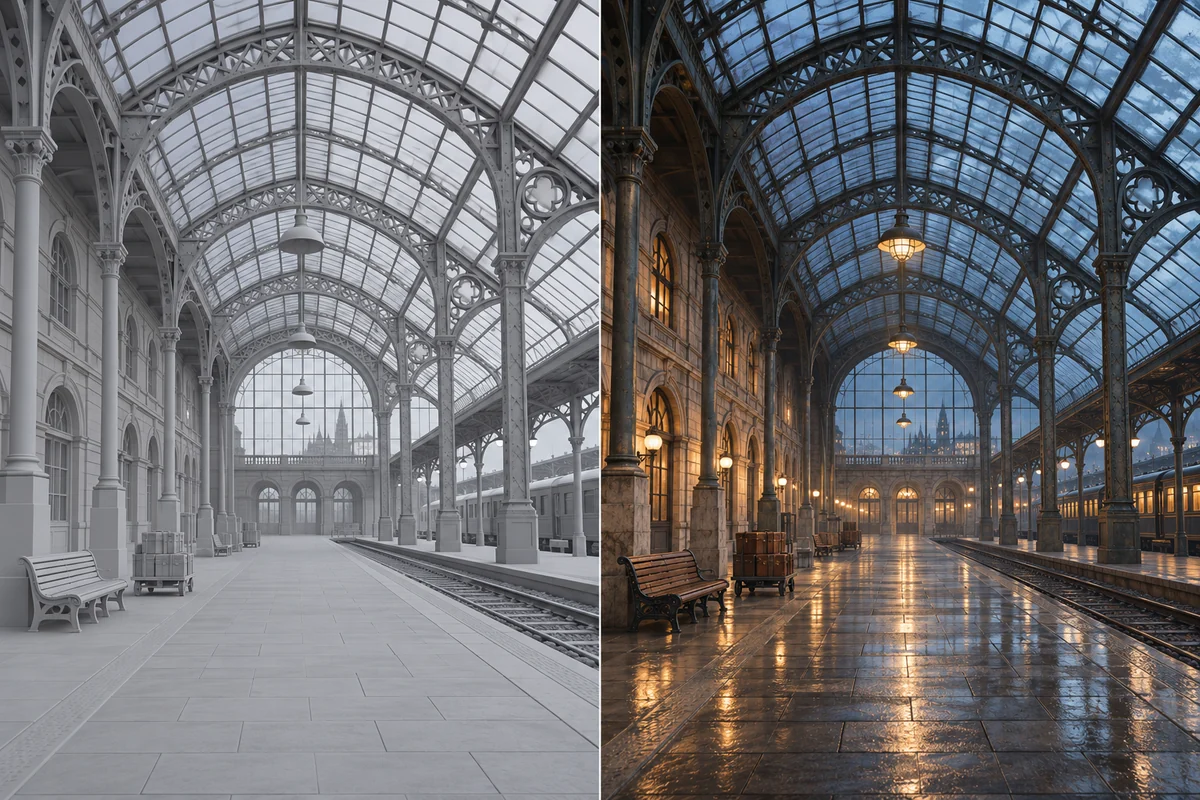
Film Concepts and Render Development
Explore the look of a scene before committing to final production. Use a rough render to guide the structure and compare materials, time of day and lighting treatments around the same composition.
X Posts About MiniMax H3 Image
Explore creative examples and community-generated images created with MiniMax H3 Image.
Frequently Asked Questions
Learn about MiniMax H3 Image's generation, editing, reference inputs and creative workflows.
What is MiniMax H3 Image?
Can MiniMax H3 Image both generate and edit images?
How many reference images can I use?
What image sizes and aspect ratios does it support?
Can I change one part of an image?
Can MiniMax H3 Image create text and infographics?
Can it turn a game map or a rough 3D render into an image?
What should I include in a MiniMax H3 Image prompt?
Is MiniMax H3 Image an open-weight model?
Is MiniMax H3 Image available in Nano Banana's generator?
Bring Your Next Scene into Focus
Bring references together, refine a product image or build a cinematic world with MiniMax H3 Image. Open Nano Banana's generator and give your next idea a visual direction.
Try it Now