
Vidu Q4 AI Video Generator
Give your characters a recognizable face, expressive movement and a scene worth watching. Vidu Q4 turns a single image or a collection of visual references into AI video, with dialogue, atmosphere and camera movement working together. Bring up to 15 images into your creative brief, shape a sequence of up to 16 seconds, and choose 2K or 4K when your final cut needs more detail.You can try it on Nano Banana
Create with Vidu Q4Why create your next video with Vidu Q4?
Move from isolated images to a scene with character, continuity and sound. Vidu Q4 gives filmmakers, marketers and social creators a practical way to explore performances, product stories and visual ideas from the assets they already have.
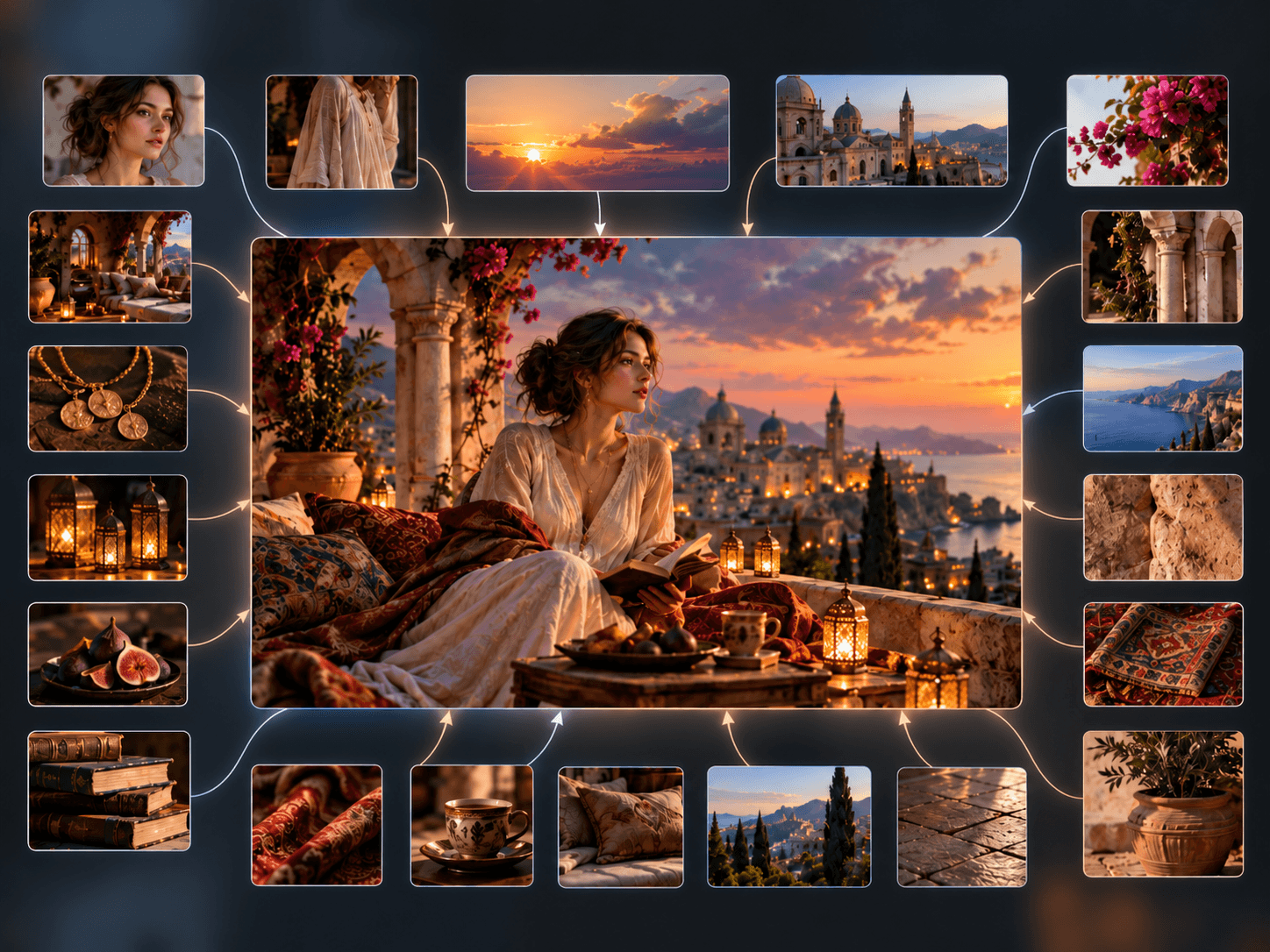
Build a scene from up to 15 image references
Bring character portraits, wardrobe details, product shots, locations and a style frame into one brief. Vidu Q4 uses a richer set of visual anchors to keep important subjects recognizable while the scene develops. Give each reference a clear purpose in your prompt, so the model can connect your assets into a coherent story.
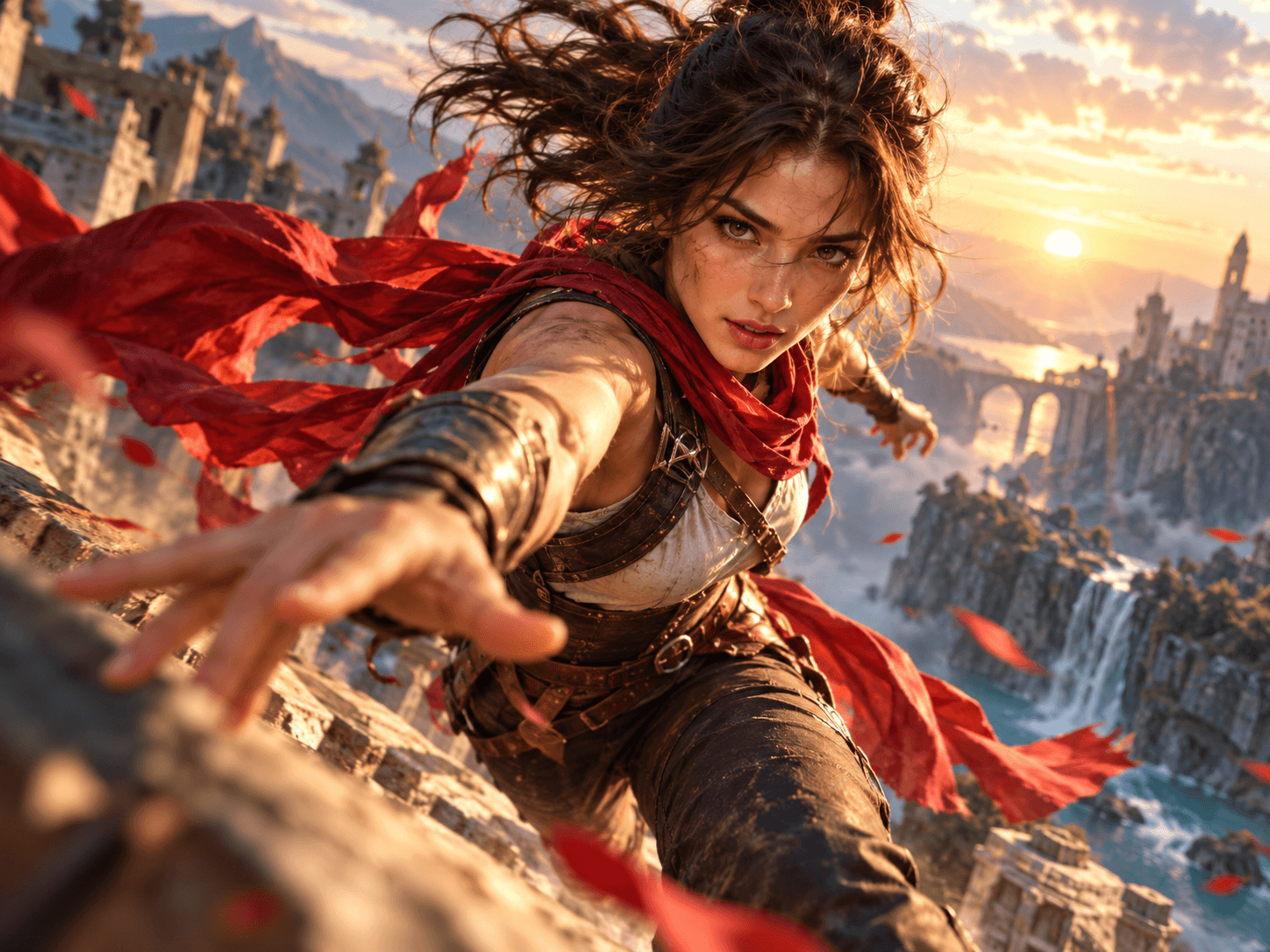
Direct character expressions and movement
Describe the glance, gesture or reaction that makes a character feel present in the scene. Pair your image references with clear action and emotion: a hesitant step, a confident product demonstration or a smile after a line of dialogue. Keep each shot focused and refine the prompt to explore different performances while retaining the visual identity established by your images.
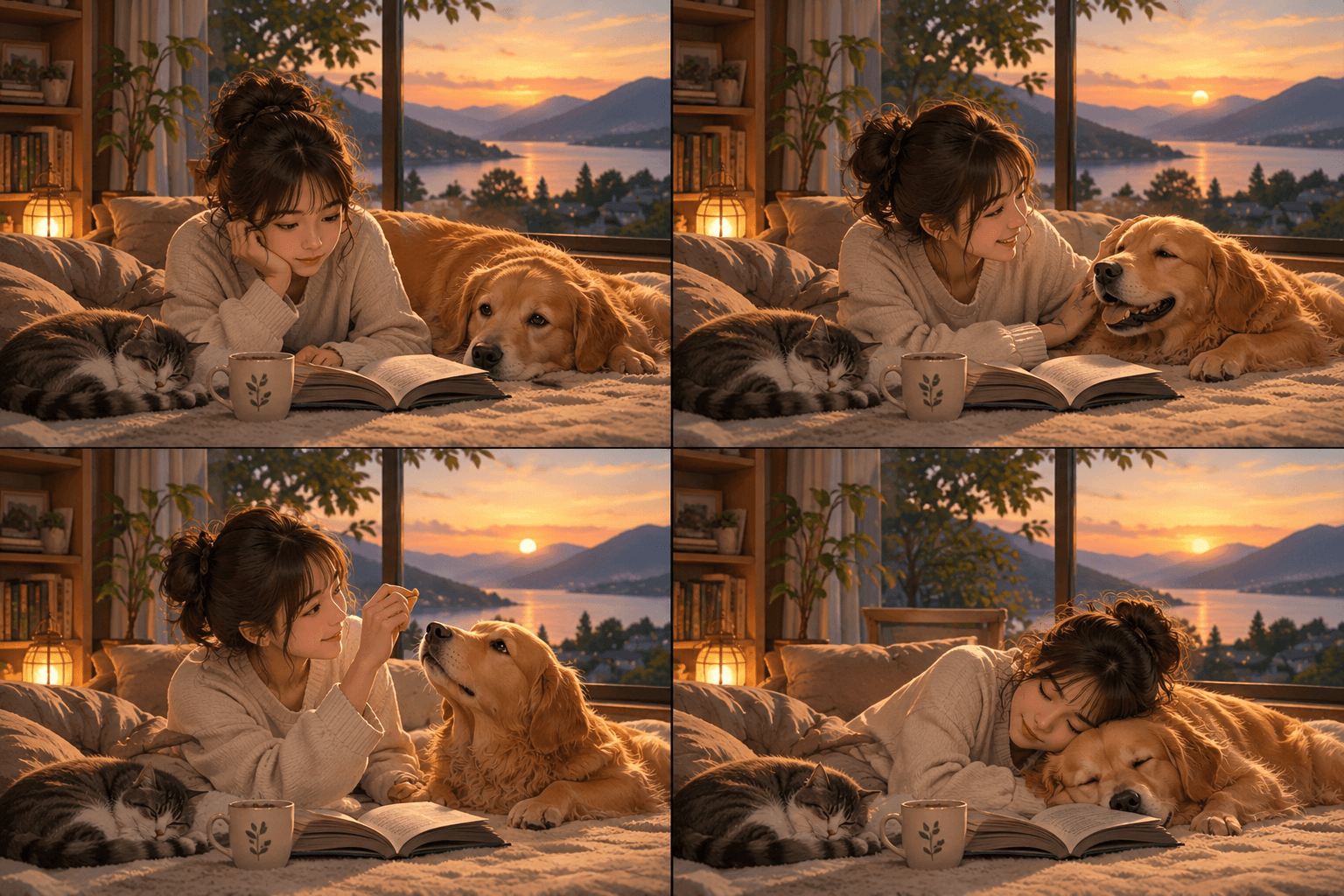
Let a short scene unfold across multiple shots
A good clip needs room for an entrance, an exchange and a reaction. Create sequences of up to 16 seconds and describe how the camera moves between those beats. Vidu Q4 can build a scene with changing viewpoints and connected action, giving you more material for a product reveal, a narrative teaser or a short drama.
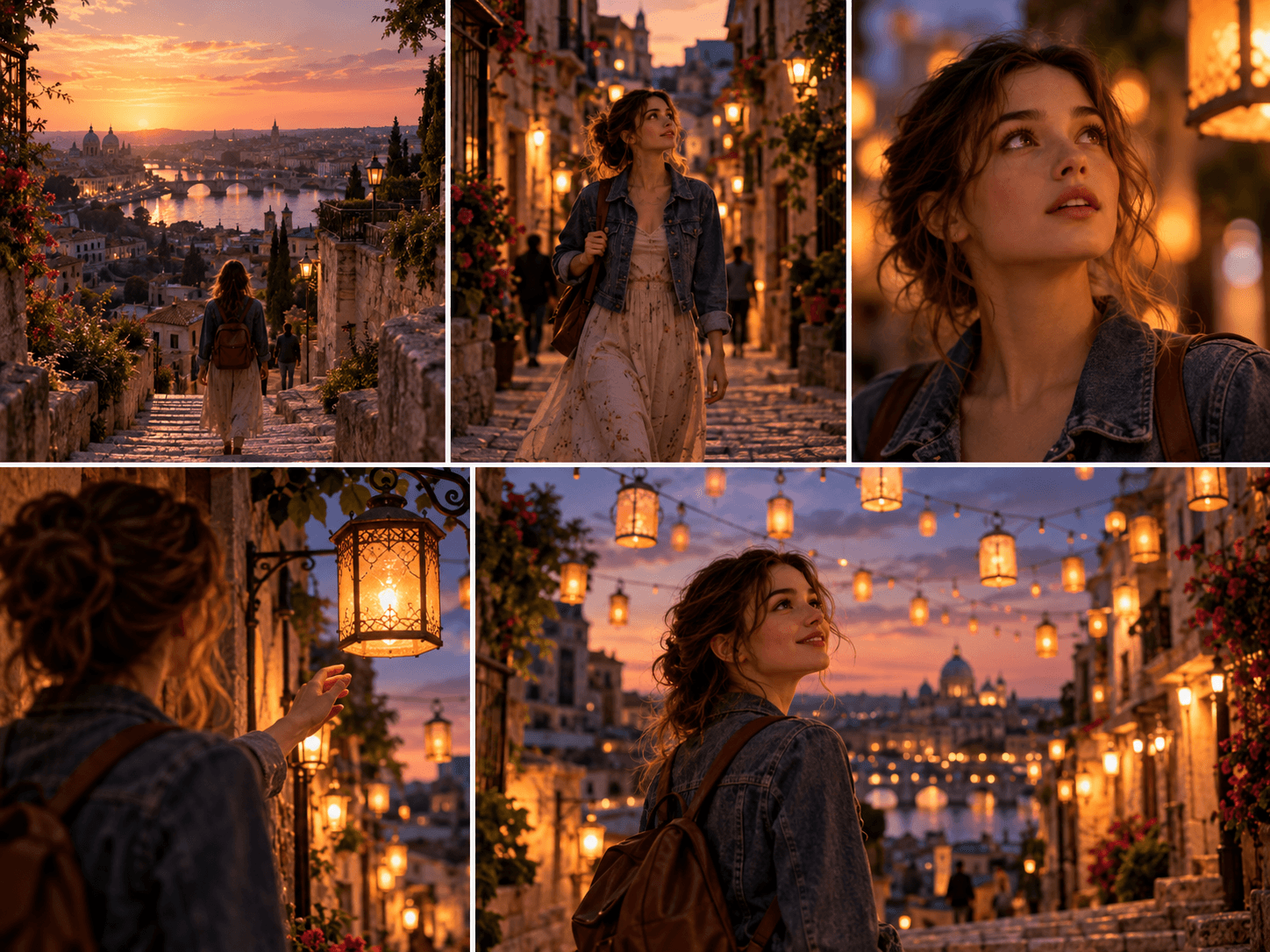
Animate one image without losing its composition
Start with a product photograph, a portrait or a finished illustration. Describe what moves, how the subject reacts and where the camera should go. Image-to-video keeps the source image's aspect ratio, helping you bring an existing composition to life while preserving the visual direction you already chose.
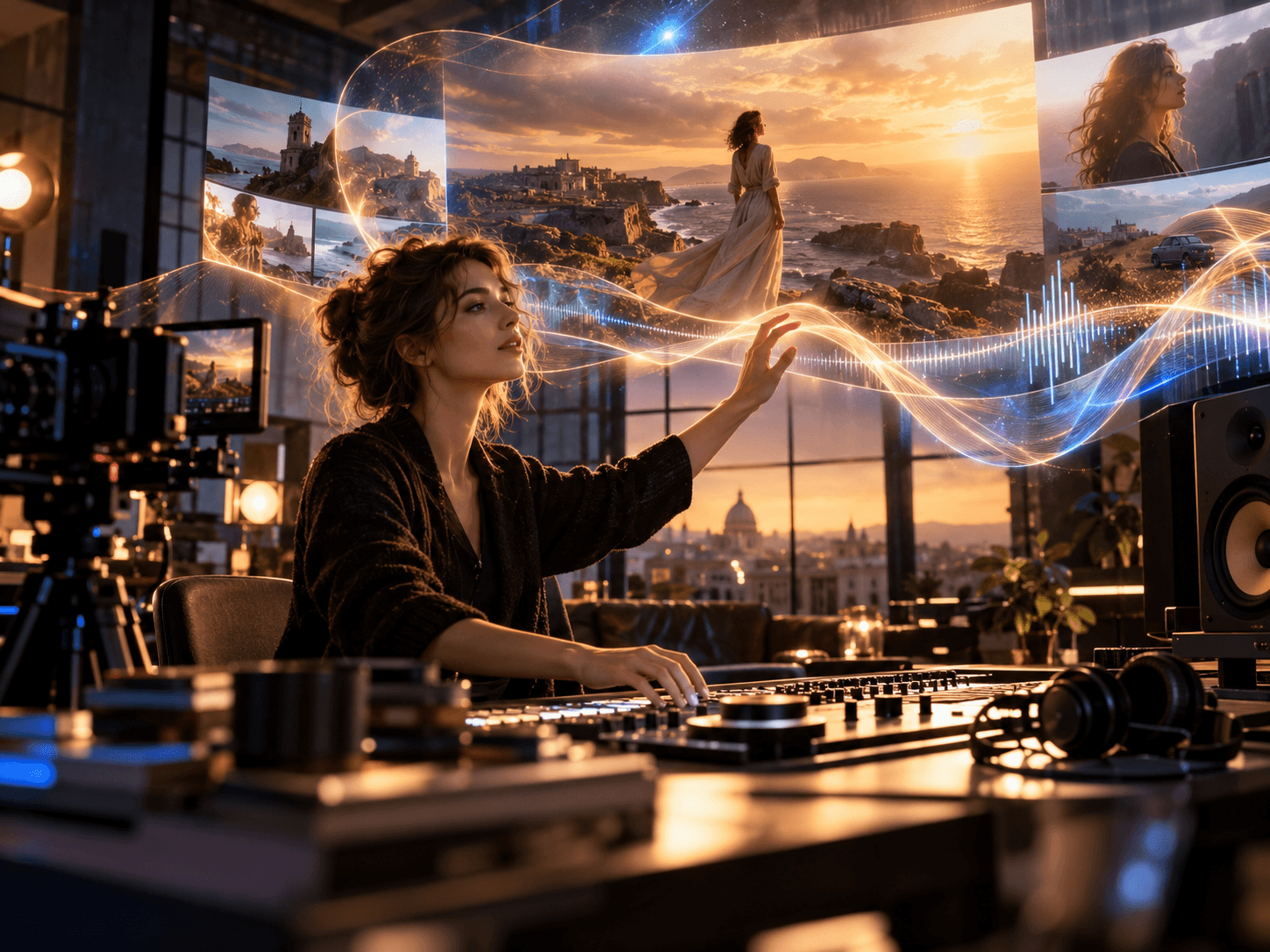
Create pictures and sound in the same pass
Generate dialogue and a supporting soundscape alongside the visual performance. Lip movement, expressions, environmental sound and scene timing can develop together instead of becoming separate editing tasks. Turn audio off when you prefer to add your own soundtrack, or keep it on for a more complete first cut.
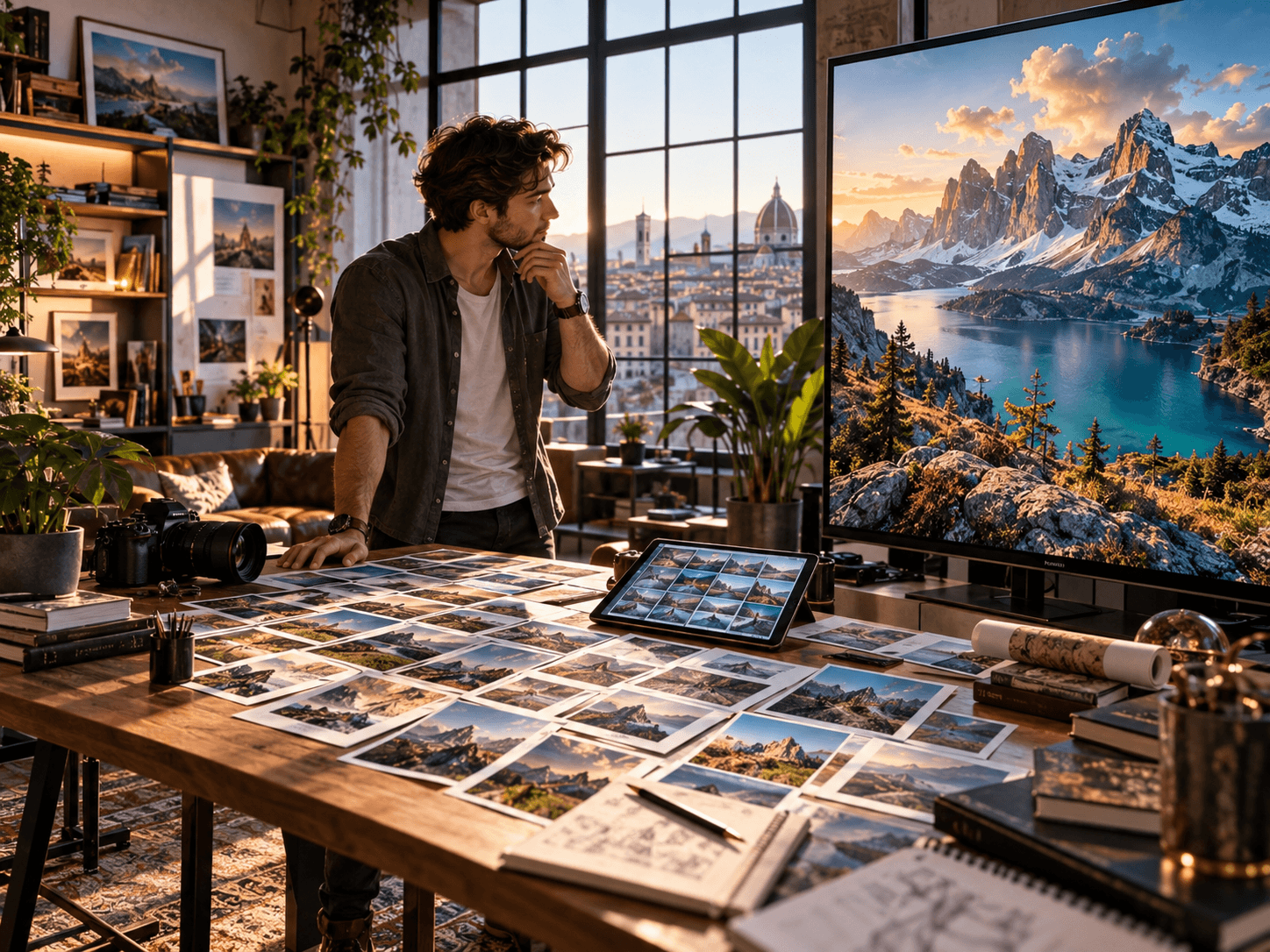
Explore quickly, then finish in 2K or 4K
Try a short draft at a lower resolution to compare the action, lighting and camera direction. Once the idea works, generate it in 2K or 4K for a sharper final version. Vidu Q4 fits product launches, paid social, creator videos and cinematic concepts where both small details and the overall visual impression matter.
How to create a video with Vidu Q4
Choose your visual anchors, describe the performance, and turn the strongest idea into a finished clip.
Choose an image or build your reference set
Write the action, dialogue and camera direction
Generate, review and refine the best take
Explore More AI Video Models
Vidu Q4 vs Vidu Q3
Choose the model around your starting assets. Vidu Q4 expands visual reference workflows with up to 15 images and 4K output, while Vidu Q3 remains useful for earlier-generation video creation and text-first ideas.
| Feature | Vidu Q4 | Vidu Q3 |
|---|---|---|
| Starting point | One source image or a set of visual references | Text or image references, depending on the selected model |
| Reference images | Up to 15 images for characters, products, locations and style | Up to 4 images in the Vidu Q3 reference workflow on Nano Banana |
| Camera direction | Describe framing, camera movement and shot transitions in your prompt | Guide movement and composition through the prompt |
| Resolution | 540p, 720p, 1080p, 2K and 4K output | 540p, 720p and 1080p output in the current Q3 workflow |
| Scene length | 3–16 seconds in the supported generation workflow | Up to 16 seconds in the reference workflow |
| Audio and performance | Native sound, dialogue and lip synchronization | Optional generated audio with image-guided video creation |
| Best fit | Recurring characters, voiced short dramas, product campaigns and polished visual stories | Text-led concepts, quick drafts and existing Q3 productions |
X Posts About Vidu Q4
Explore how creators approach reference-based scenes, recurring characters, expressive performances and cinematic movement with Vidu Q4.
Vidu Q4 FAQ
Practical answers about Vidu Q4 image references, prompts, video length, output quality and creative workflows.
What is Vidu Q4?
How many images can I use with Vidu Q4?
How should I write a Vidu Q4 prompt?
How long can Vidu Q4 videos be?
Does Vidu Q4 support 2K and 4K output?
Does Vidu Q4 generate audio and lip sync?
What is the difference between image and reference modes?
Can I create a Vidu Q4 video from text alone?
How do I keep characters consistent across scenes?
What can I make with Vidu Q4?
Bring your next character, product or story to life with Vidu Q4.
Create with Vidu Q4